 ChangeBot (formerly SPGA) is a SharePoint add-on that makes handling site provisioning and other user requests hassle-free for the SharePoint Administrator. It provides an automated, zero-touch solution to the management and execution of user requests, that would otherwise have to be handled personally by a SharePoint Administrator within the organization. It also automatically enforces your SharePoint Governance Plan and logs all user requests and results.
Examples of the types of user requests that can be handled automatically in the ChangeBot Self-Service Request Portal are:
- Provision a new SharePoint Site Collection or Subsite (including granular configuration steps)
- Change permissions on a Site, Library, List or Item
- Change the Quota for a Site Collection
- Activate a Feature
- and virtually any SharePoint Administration request via full integration with SharePoint Powershell!
Available for SharePoint 2019, 2016, 2013, and 2010!
Click to Select Video to Watch:
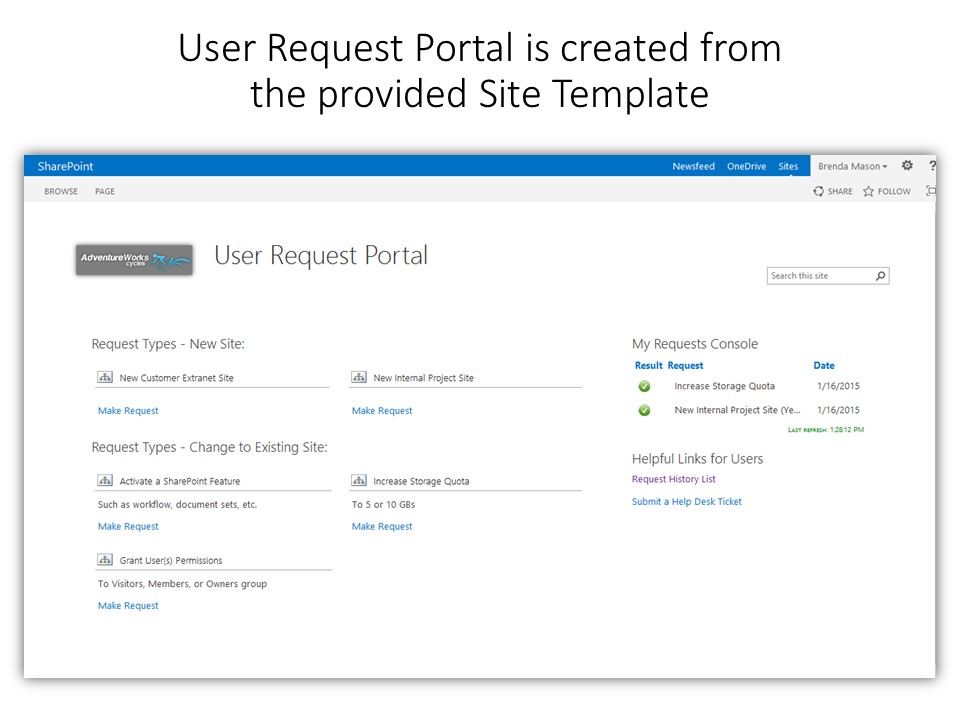
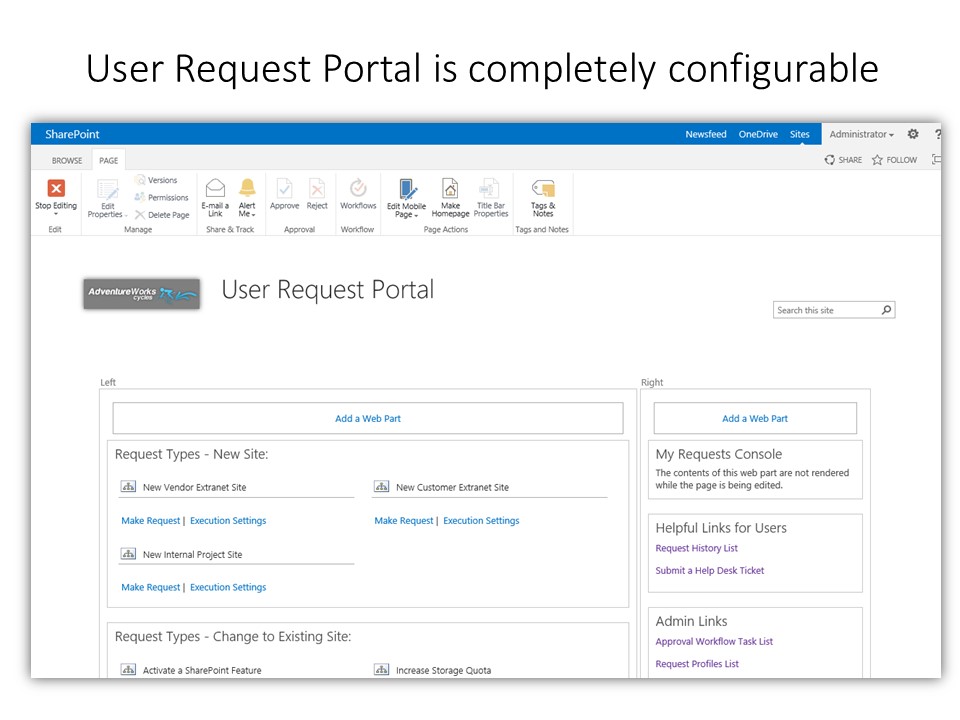
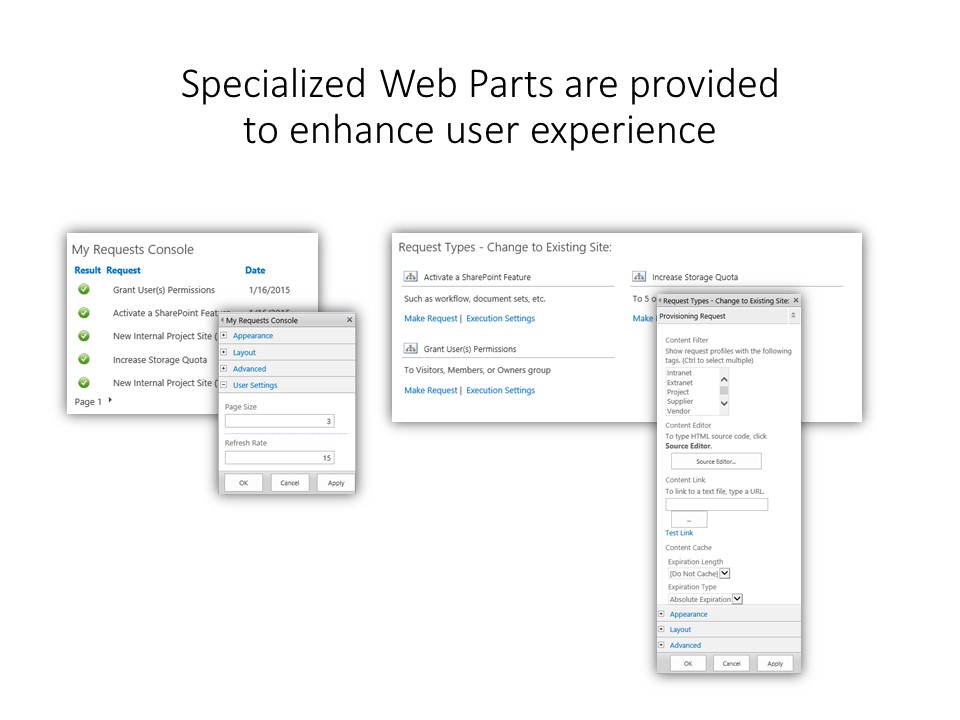
User-friendly and Customizable Request Portal
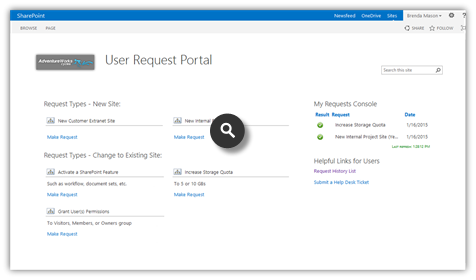
- User Request Portal is a SharePoint site – starter template provided
- Configurable Web Parts to enhance user experience
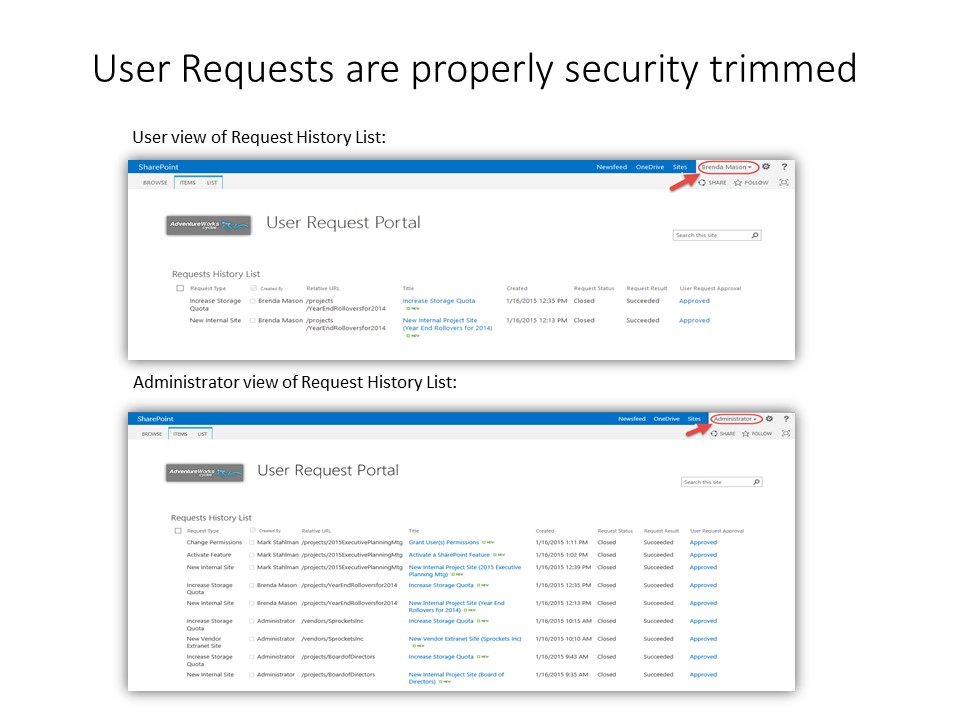
- Security trimming on all items
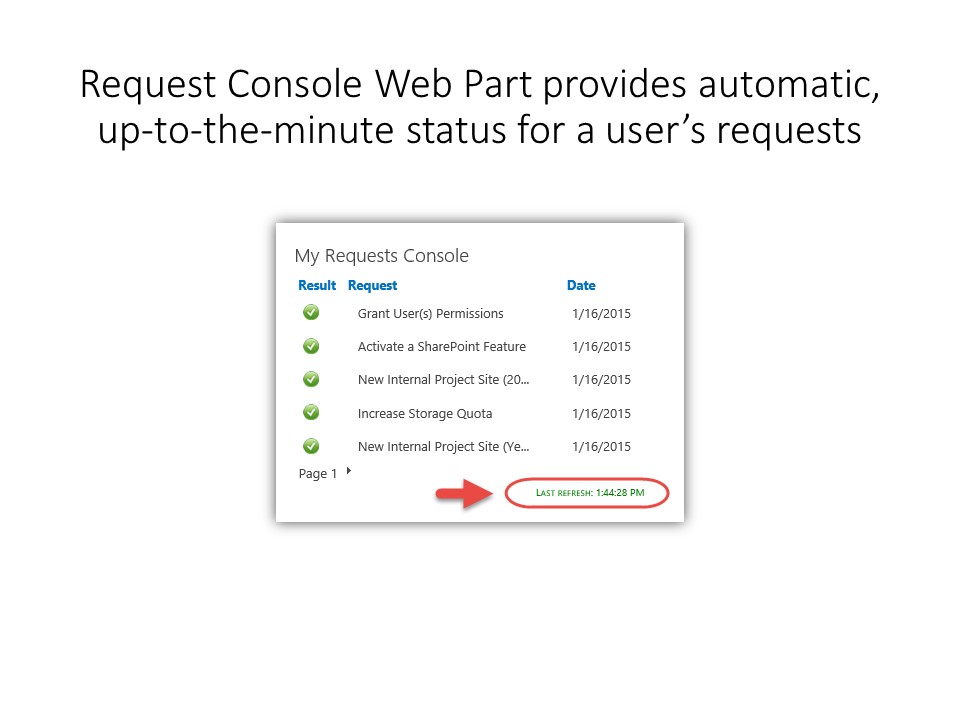
- Request Console Web Part automatically refreshes with latest status
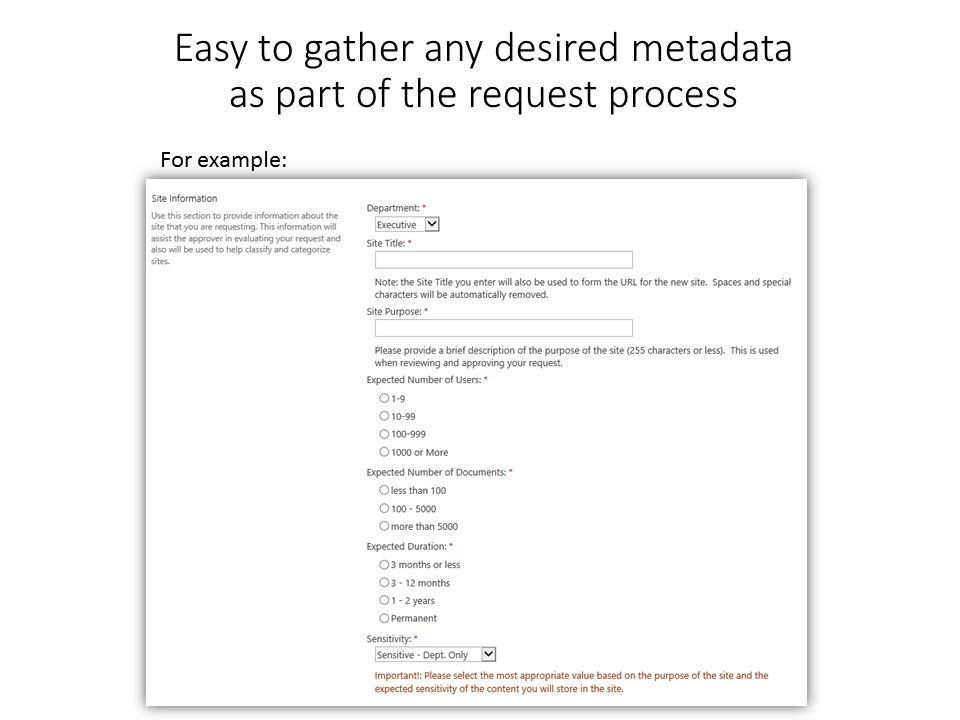
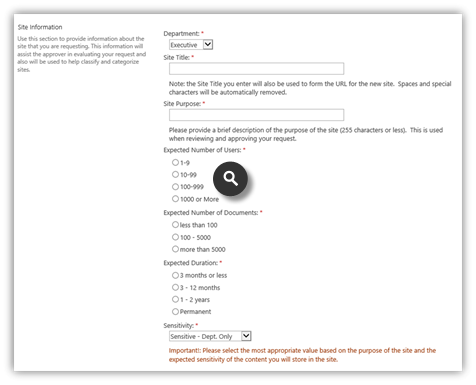
+ Configurable User Request Forms
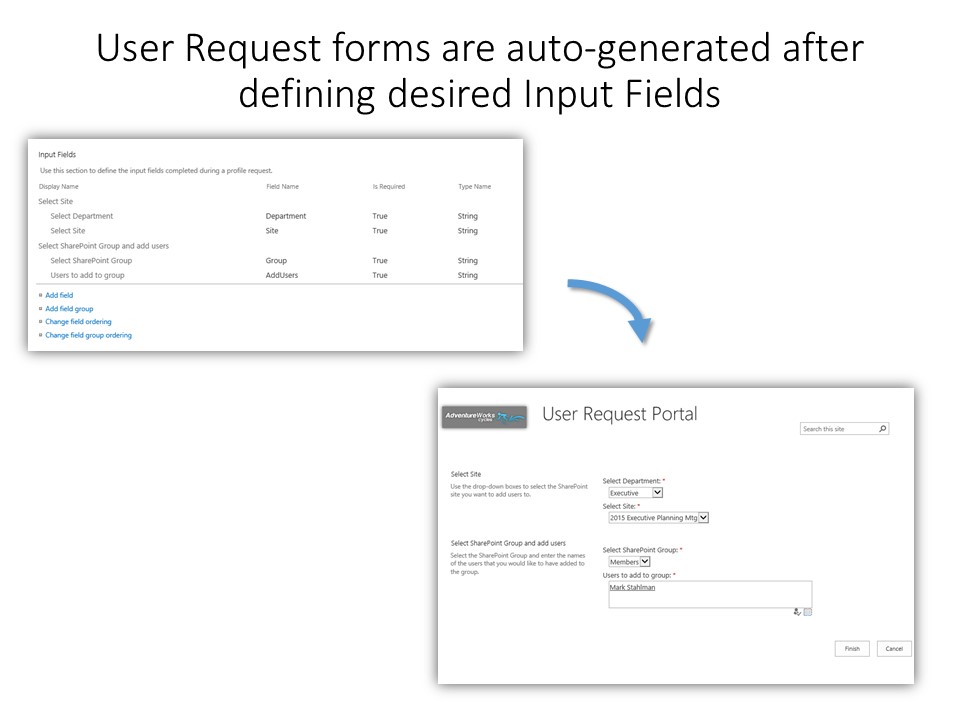
- Request Forms are configurable and automatically generated
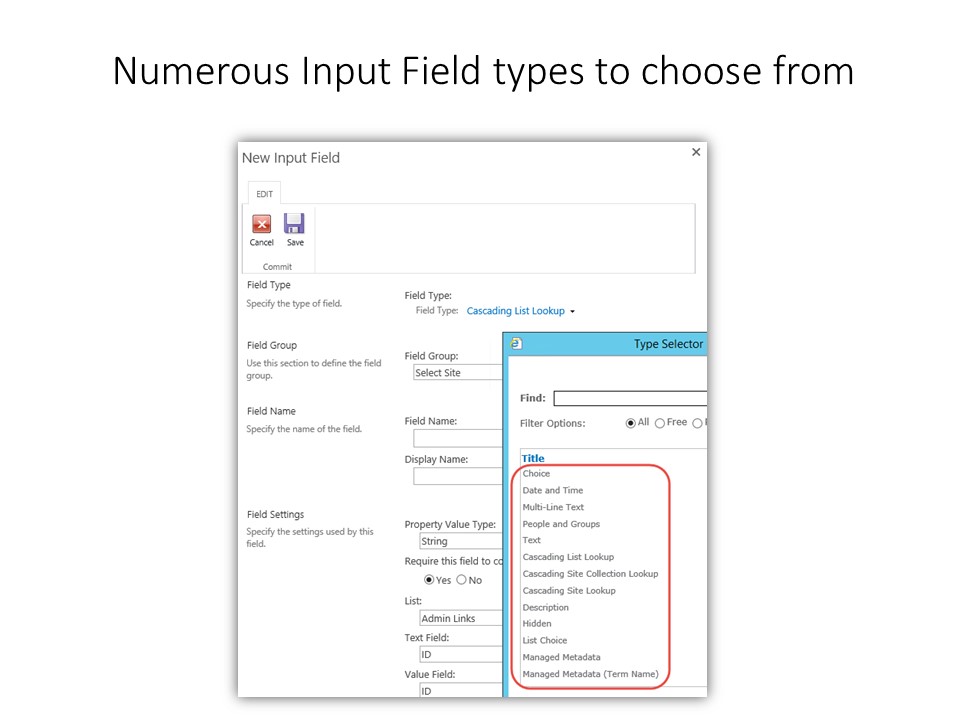
- Numerous field types including Text, Date\Time, Choice, etc.
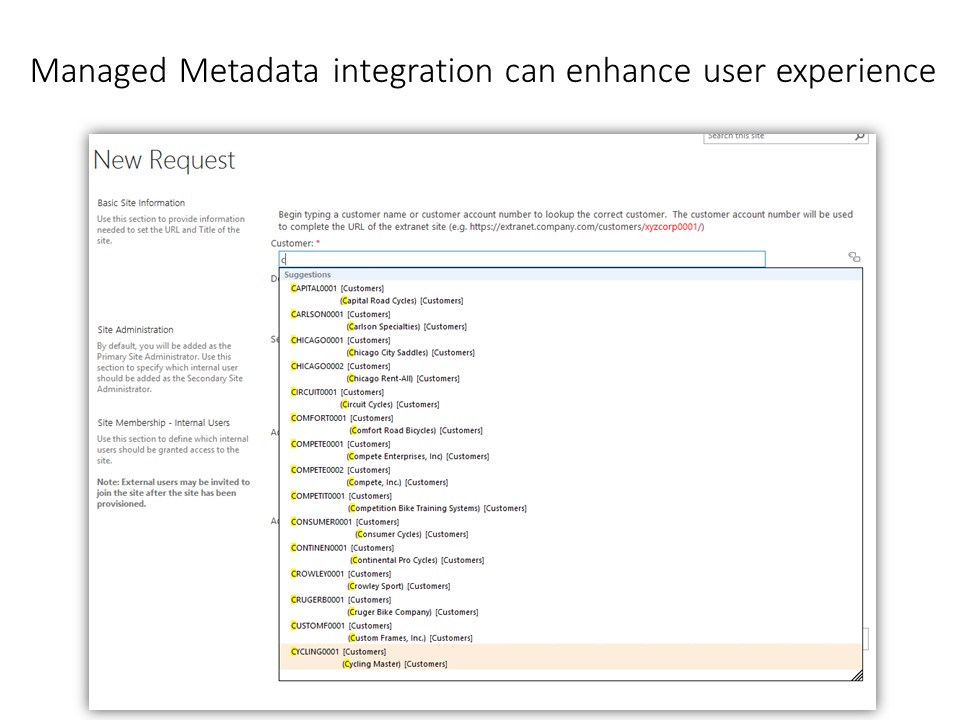
- Cascading lookup fields enhance user experience
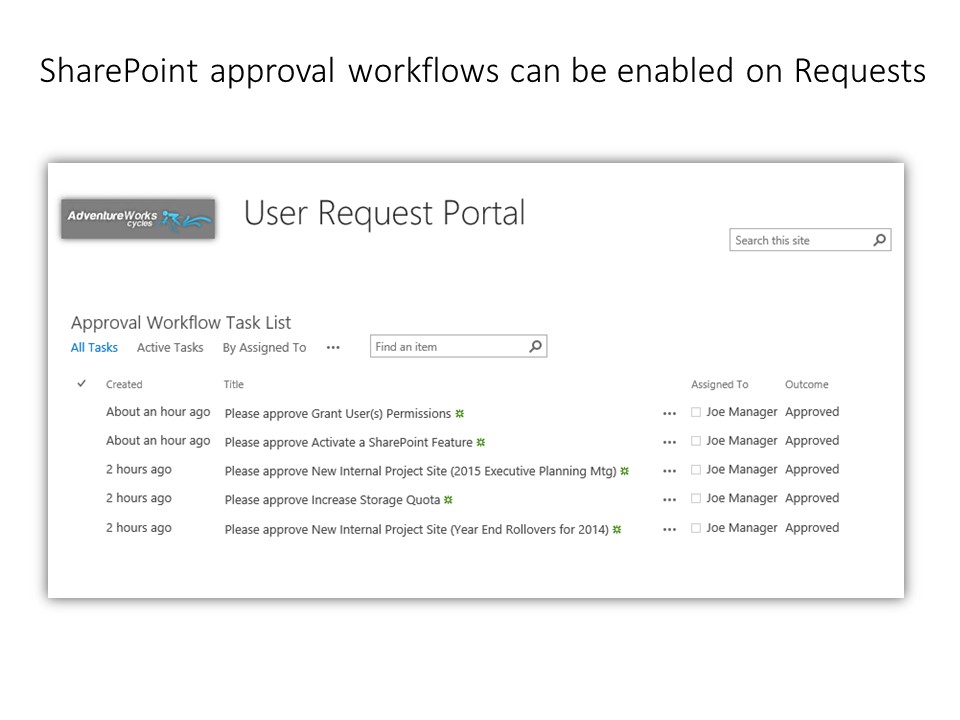
- SharePoint Approval workflows can be enabled on requests
- Full support for Managed Metadata fields
+ Workflow Engine Handles Automatic Processing of User Requests
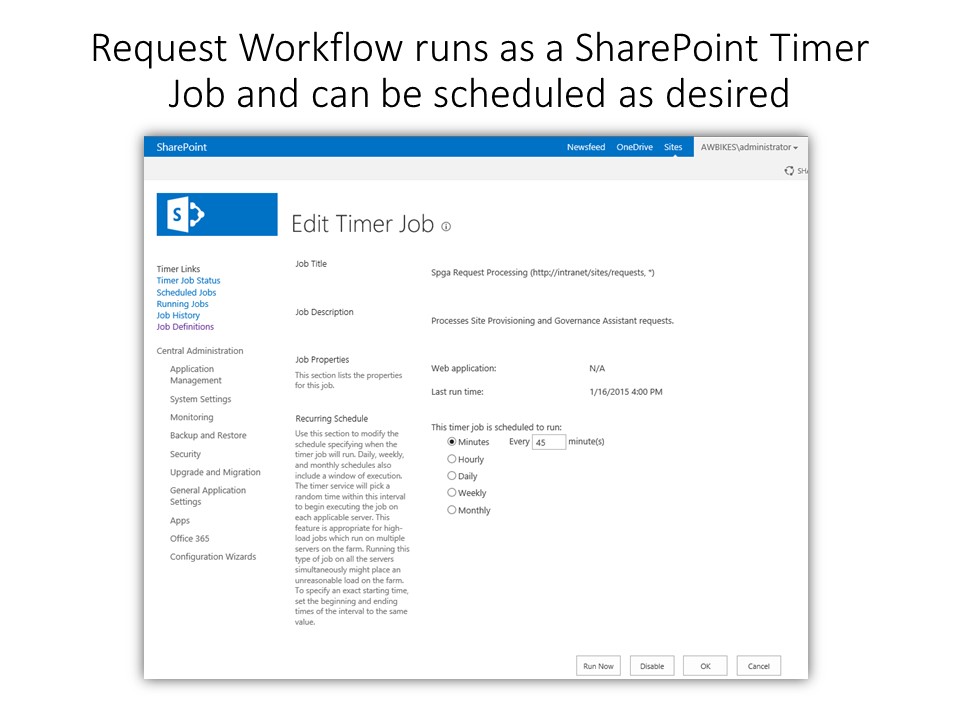
- Workflow service can run on single or multiple servers
- Workflow timer jobs can be scheduled as desired
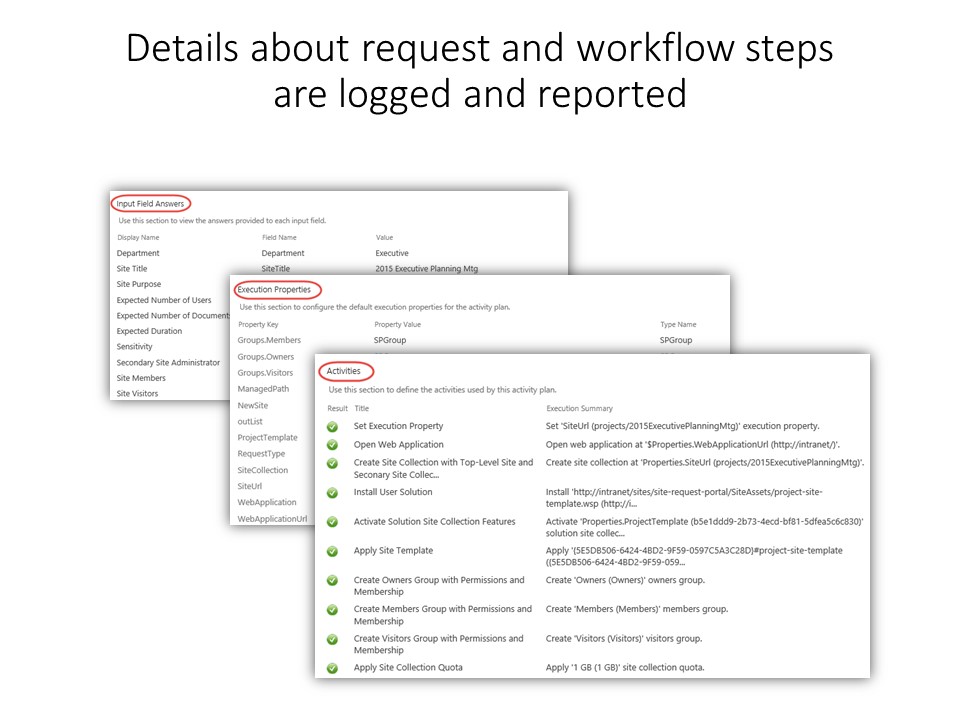
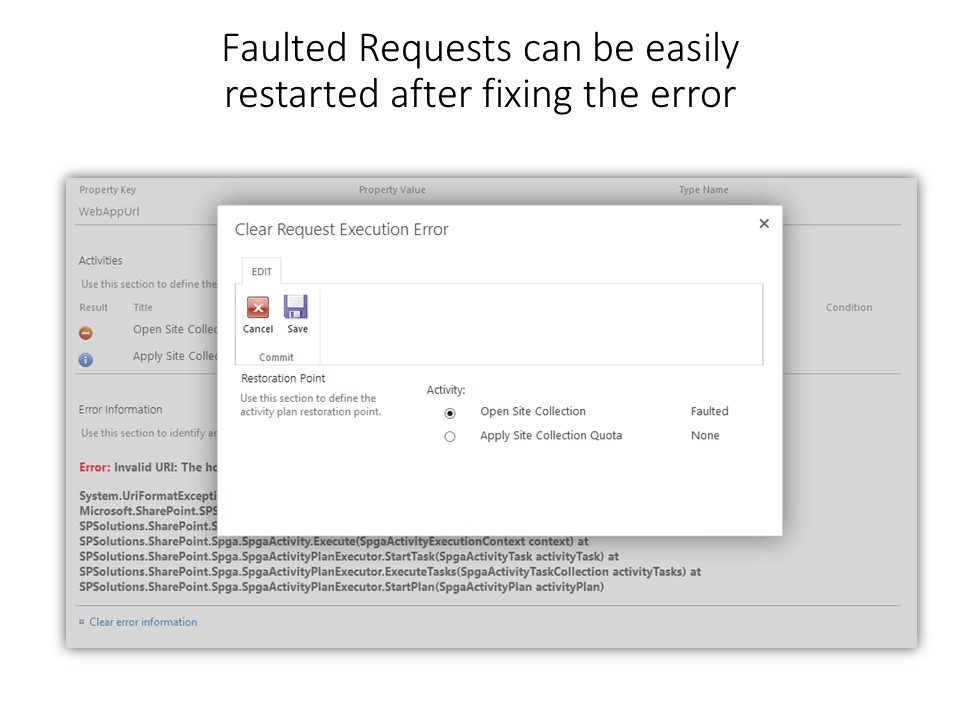
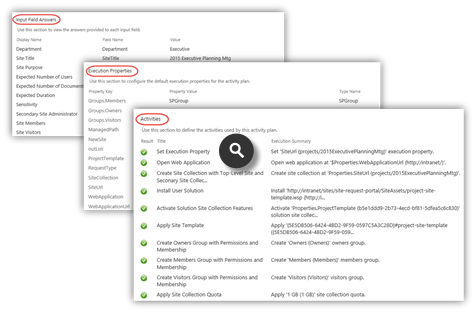
- Workflow steps are fully recorded
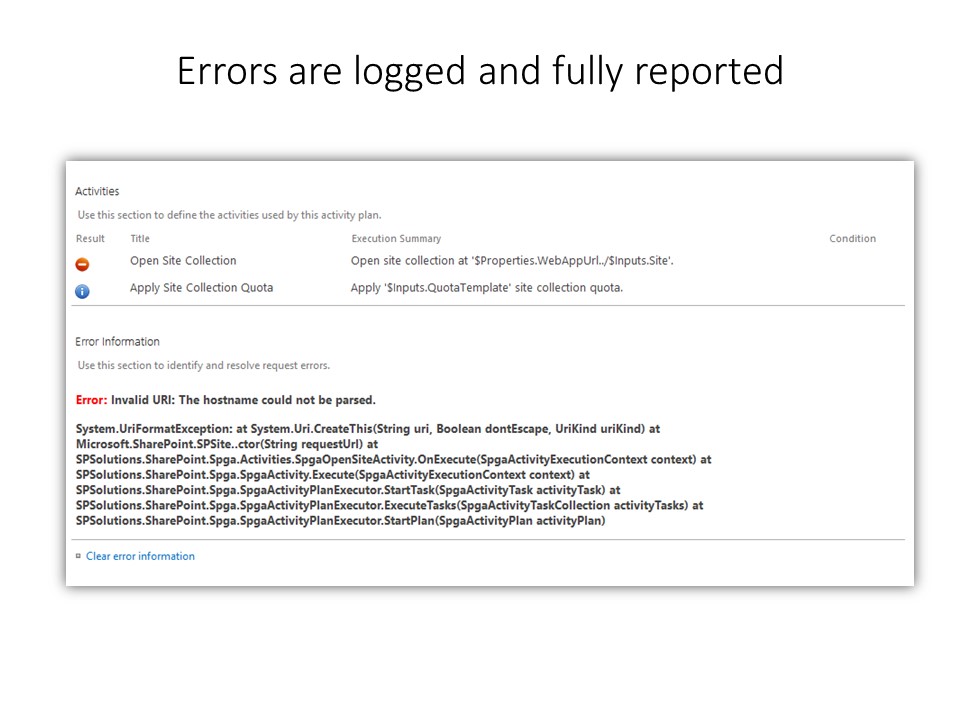
- Errors are fully recorded
- Faulted Request Jobs can easily be restarted after fixing error

+ Powerful Workflow Authoring Environment for the Administrator
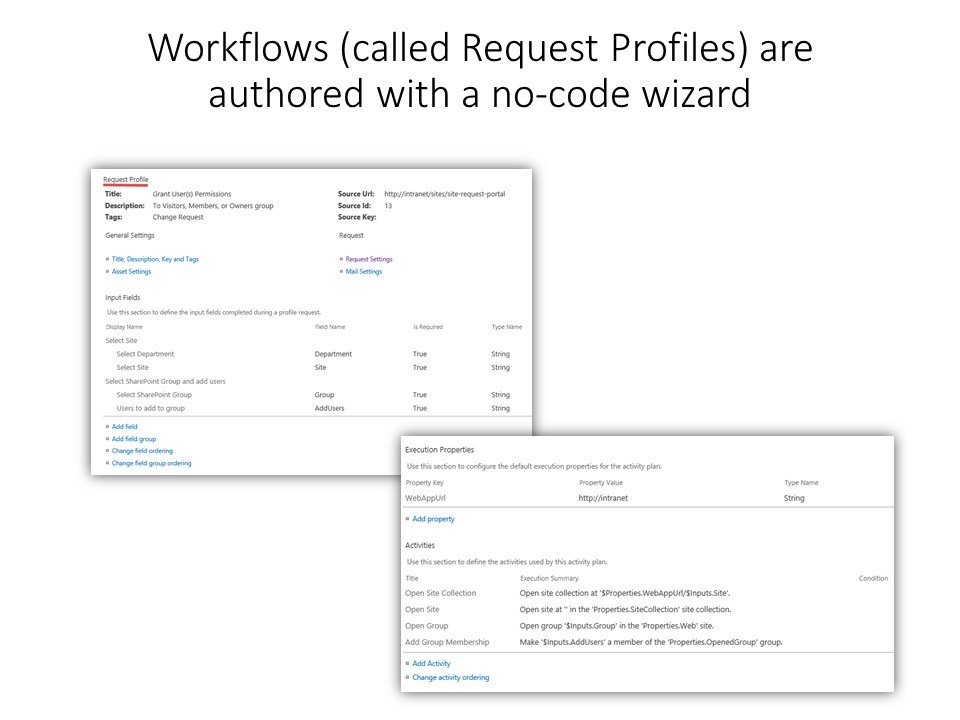
- No-code request workflow wizard
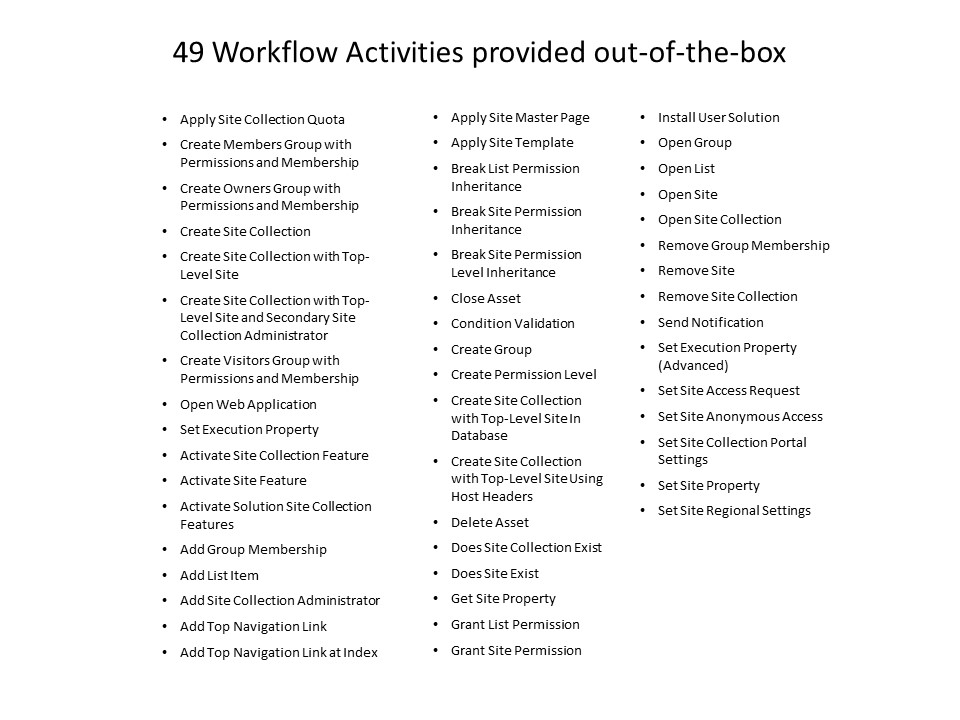
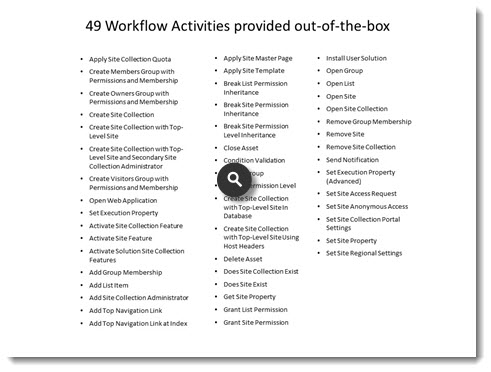
- 40+ workflow activities
- Powershell script can be executed as an activity
- Workflow activities support conditional processing
- Numerous helpful functions provided out-of-box
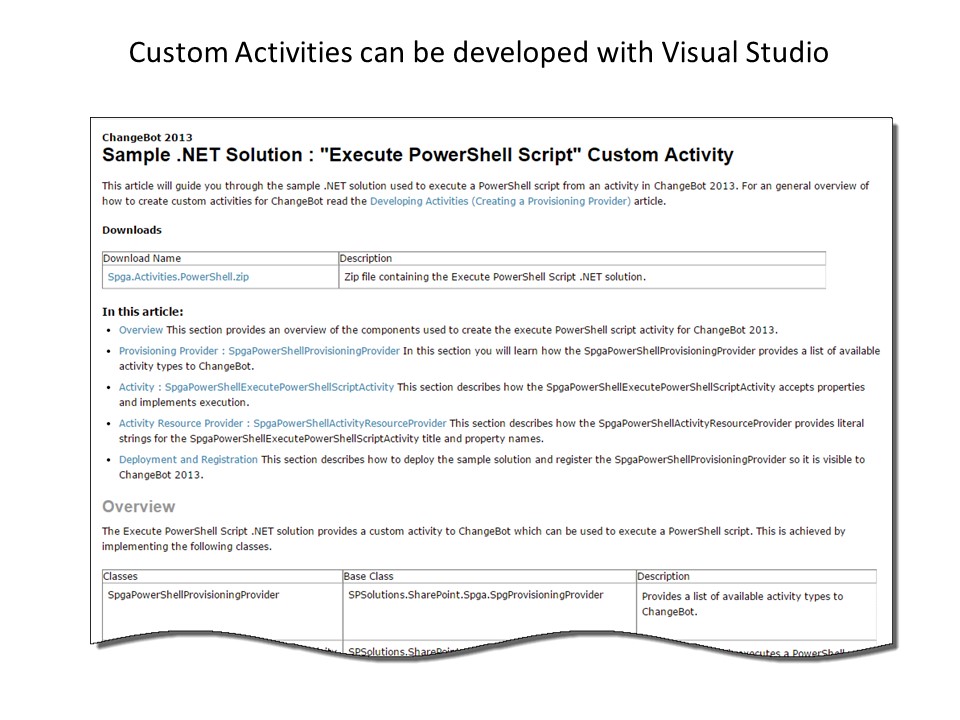
- Custom activities can be added with Visual Studio
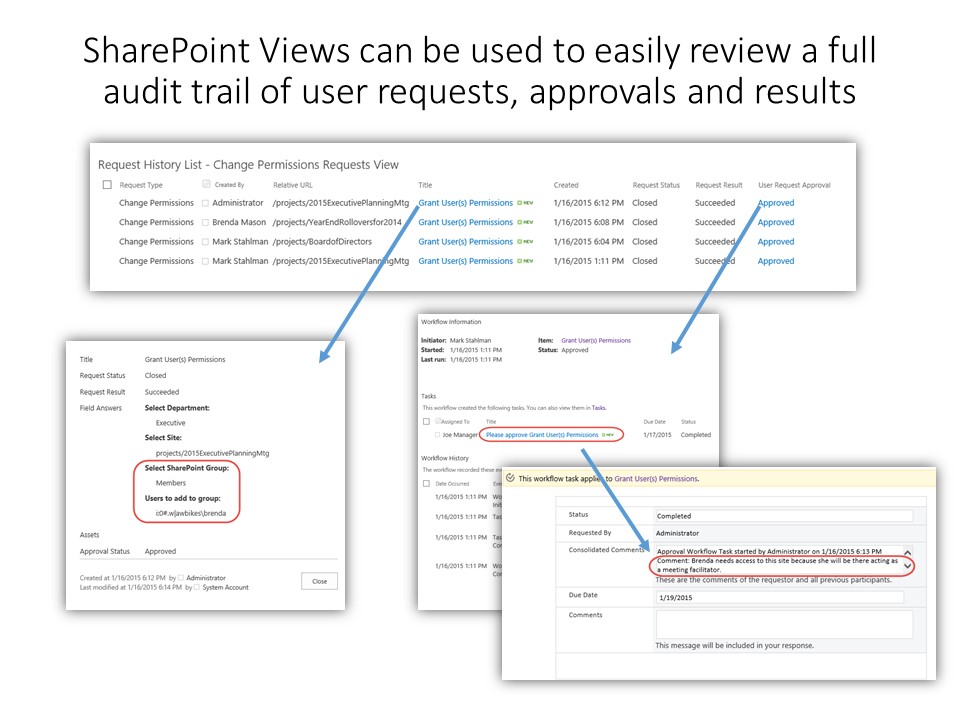
+ Automatic Logging and Reporting of all User Requests and Results
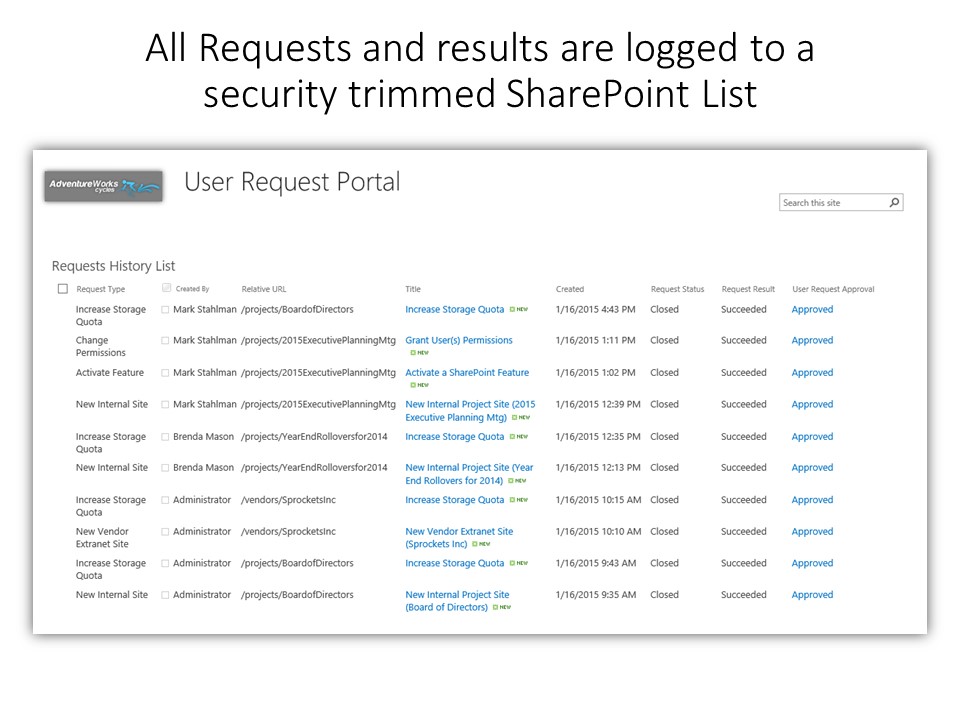
- User Requests are logged to a SharePoint List
- Results are logged to a SharePoint List
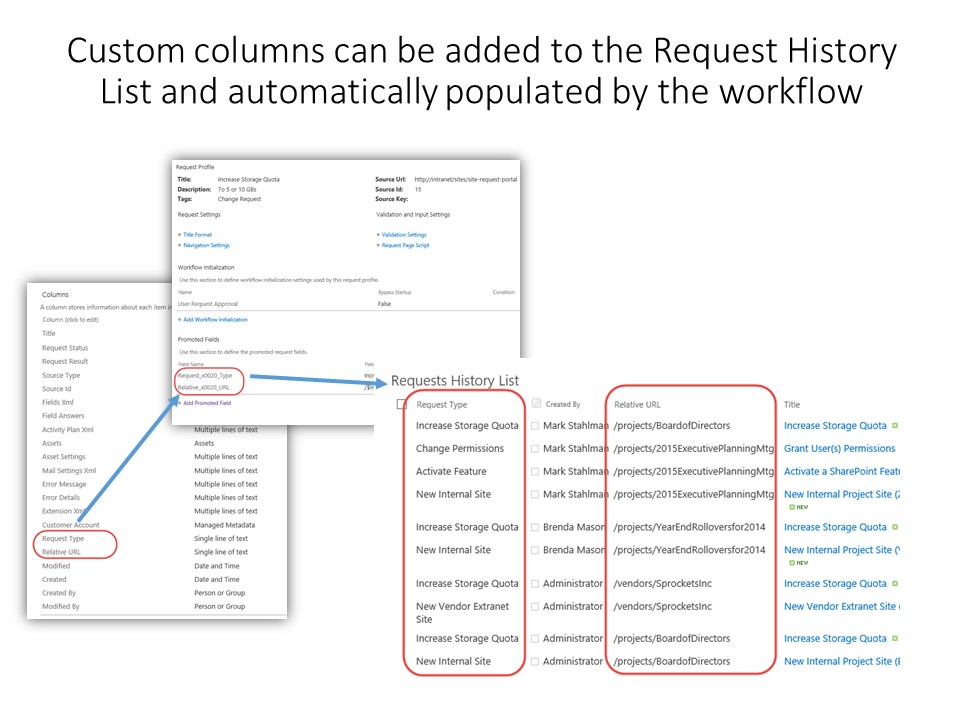
- Custom columns can be added and automatically populated by workflow engine
- SharePoint List Views can be used for reporting
+ Excellent Support and Documentation
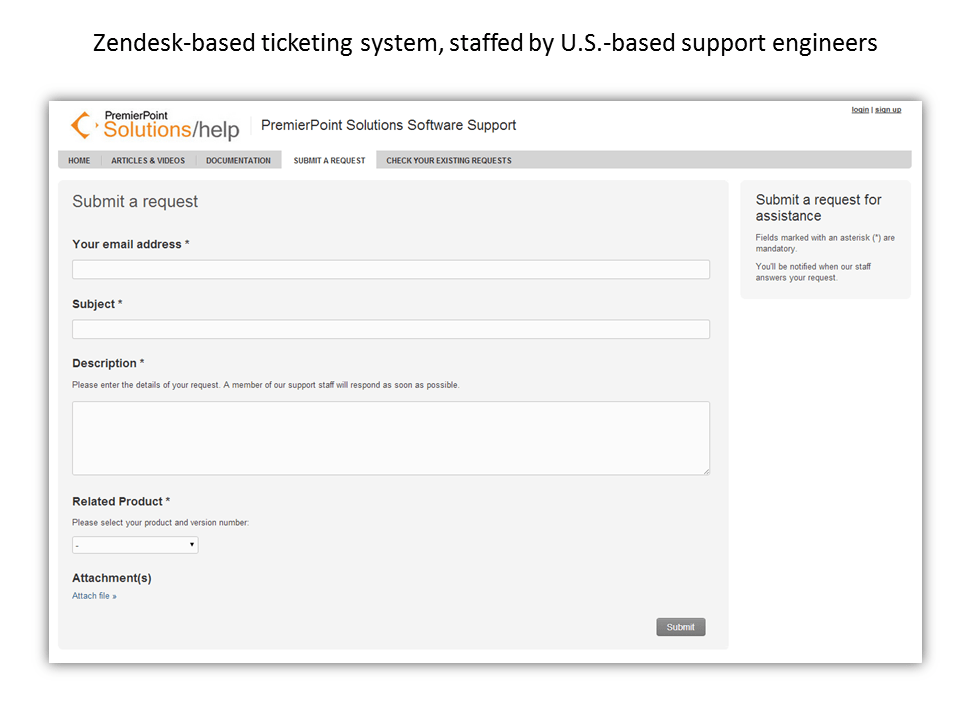
- Professional, U.S.-based support engineers
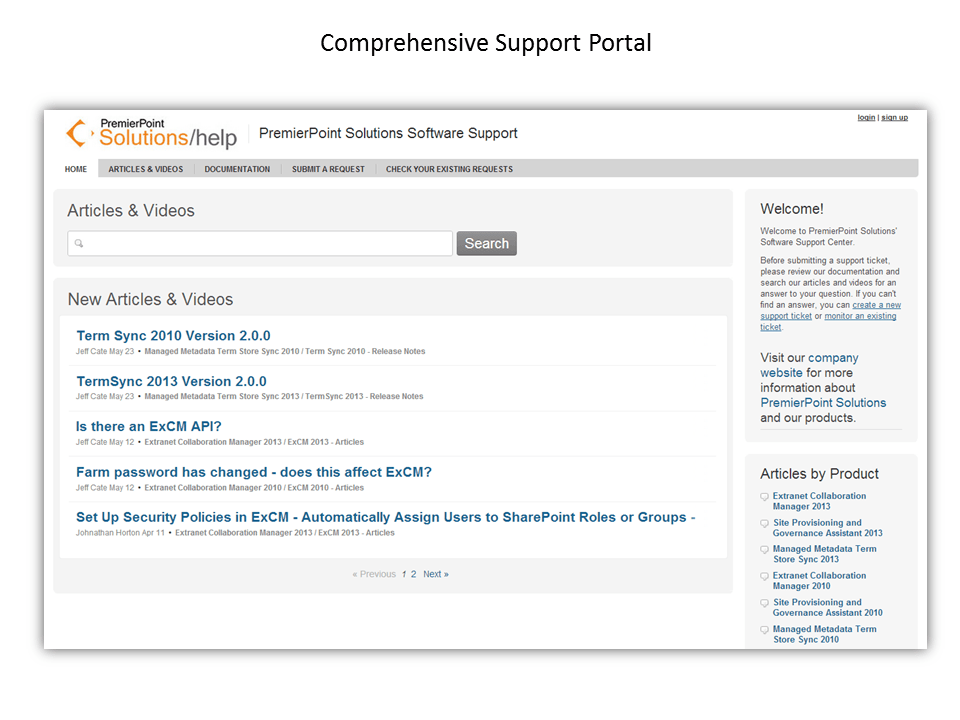
- Comprehensive support portal
- Zendesk-based ticketing system ensures support requests are efficiently handled
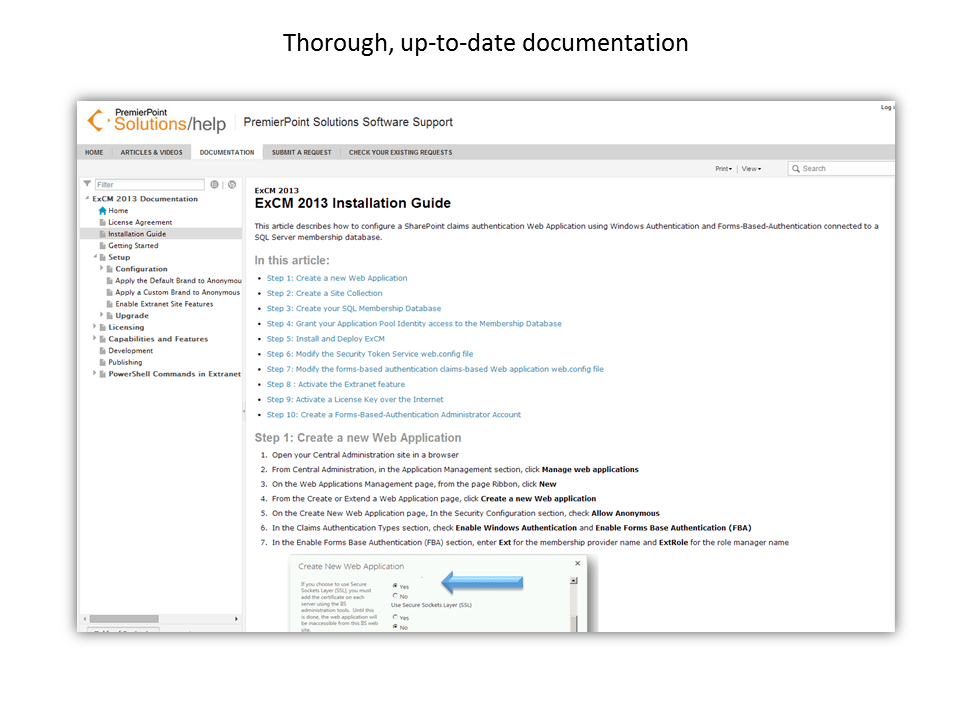
- Thorough documentation.
Examples of our satisfied ChangeBot customers include:




ChangeBot is available in two editions:
- ChangeBot Paid Edition (2019, 2016, 2013, or 2010)
- ChangeBot Free Edition (2016, 2013, or 2010)
The table below shows the feature categories that are included with each edition:
| Features Included by Edition | ChangeBot Free (2016, 2013, or 2010) | ChangeBot Paid (2019, 2016, 2013, or 2010) |
| User-friendly and Customizable Request Portal |  |
|
| Automated handling of requests for new site collections and subsites | |
|
| Automated handling of requests for changes to existing site collections and subsites |  |
|
| Configurable User Request Forms | |
|
|
(click + to open)
|
|
|
|
(click + to open)
|
|
|
| Powerful, GUI-based Workflow Authoring Environment | |
|
| Workflow Engine that automatically processes User Requests | |
|
|
(click + to open)
|
|
|
|
(click + to open)
|
|
|
| Automatic Detailed Logging of User Requests and Results | |
|
| Excellent Support and Documentation | |
|
Examples of our satisfied ChangeBot customers include:
ChangeBot installs as a SharePoint Farm Solution. Therefore, the system requirements are those of a healthy SharePoint 2010, 2013, 2016 or 2019 farm. See these pages on Microsoft’s TechNet site for details on SharePoint 2010, 2013, 2016 and 2019 system requirements:
Hardware and Software Requirements for SharePoint 2019
Hardware and Software Requirements for SharePoint 2016
Hardware and Software Requirements for SharePoint 2013
Hardware and Software Requirements for SharePoint 2010
ChangeBot adds a User Request Processing Workflow service that can run on one or more servers in the SharePoint Farm. In multi-server farms where a high-volume of user requests will be processed by the system, it can be advantageous to dedicate one or more application servers to running the User Request Processing Workflow service.
Professional, U.S.-based Support
PremierPoint Solutions provides support for ChangeBot through our ticketing system which is staffed by professional, U.S.-based support engineers.
Comprehensive ChangeBot Documentation
ChangeBot is fully documented and continuously reviewed and approved as we support our customers
| Edition | Price |
| ChangeBot Free Edition (2016, 2013, or 2010) | Free |
| ChangeBot Paid Edition (2019, 2016, 2013, or 2010) | $5,375 per server1 |
1 Price shown for ChangeBot Paid licenses does not include annual Technical Support agreement, which is required for first year and optional thereafter.